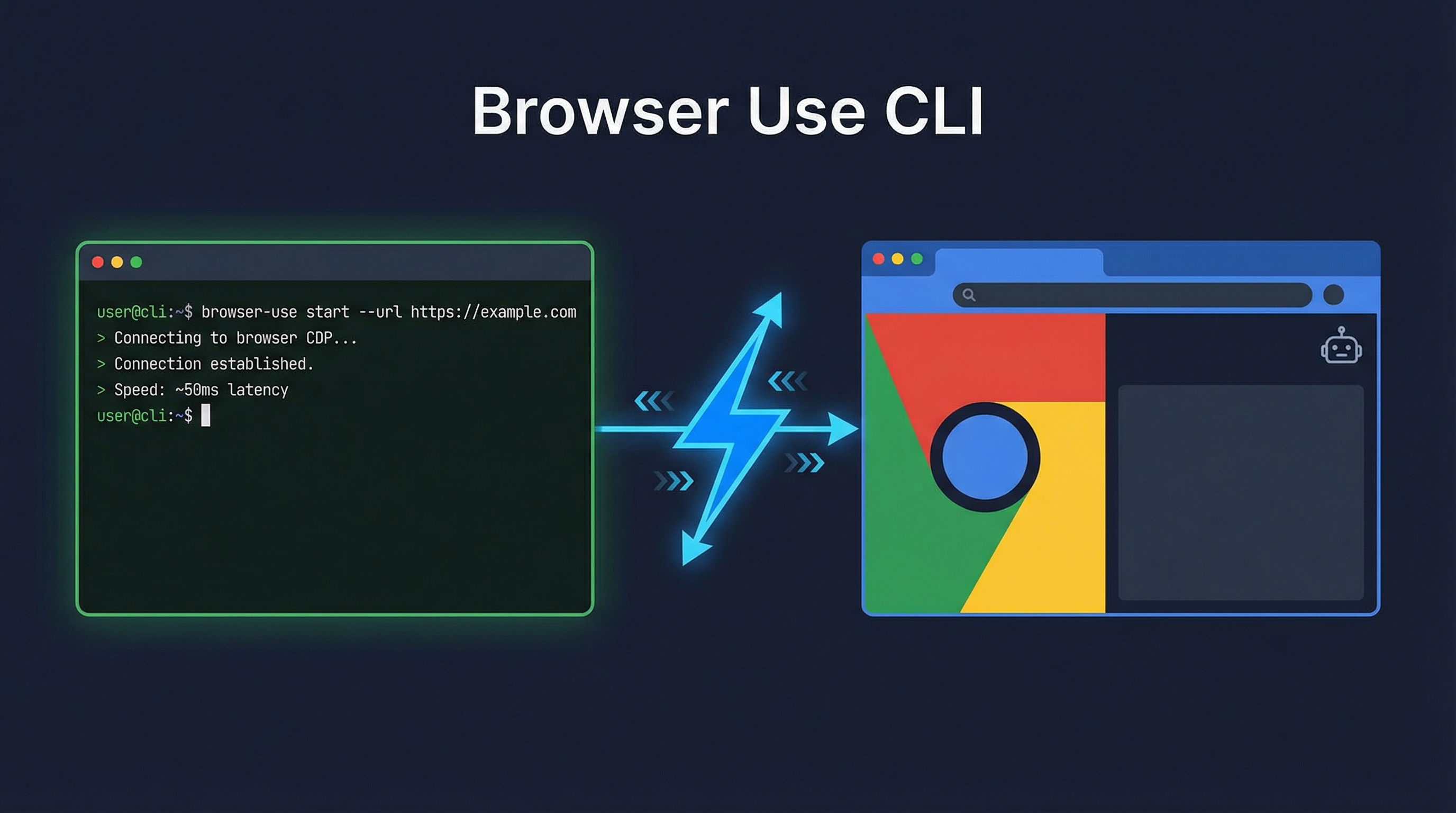
Browser Use CLI 2.0 is a browser automation tool built for AI coding agents. Instead of Playwright’s heavy browser instances, it connects directly to your running Chrome via CDP (Chrome DevTools Protocol), giving ~50ms command latency through a persistent background daemon. 2x faster than v1, half the cost, and works with Claude Code, Codex, Cursor — any CLI agent.
| *Source: GitHub: browser-use/browser-use | Claude Code Chrome Docs | Browser Automation Tools Compared* |
What’s New in 2.0
| Feature | v1 | v2 |
|---|---|---|
| Speed | Baseline | 2x faster |
| Cost | Baseline | Half the cost |
| Browser | Launches separate instance | Connects to running Chrome |
| Protocol | Playwright wrapper | Direct CDP |
| Latency | ~200ms+ per command | ~50ms per command |
How Direct CDP Changes Everything
Old approach (Playwright):
  Agent → Playwright → Launches new browser → Executes
  Separate browser, no existing cookies/sessions, heavy

New approach (Direct CDP):
  Agent → CDP → Your running Chrome → Executes
  Your browser, your cookies, your sessions, lightweight
The key advantage: your existing Chrome sessions, cookies, and logins are available. No need to re-authenticate, import cookies, or set up a separate browser profile. Claude can interact with your actual browsing context.
Claude Code Integration
Add to your CLAUDE.md:
When using browser-use, always use --cdp-url to connect
to the running Chrome instance.
Or install the browser-use skill for Claude Code:
# Install as a skill
browser-use --connect open https://example.com

# Connect to your browser and navigate
browser-use --connect open https://x.com
The screenshot in the original post shows Claude Code using browser-use to:
- Connect to the user’s browser
- Navigate to x.com
- Check recent notifications
- All through natural language commands
Works With Any Agent
| Agent | Support |
|---|---|
| Claude Code | Full — skill available |
| Codex | Full — CLI compatible |
| Cursor | Full — CLI compatible |
| OpenClaw | Full — CLI compatible |
| Any CLI agent | Full — standard CLI interface |
Three Browser Modes
| Mode | How It Works | Best For |
|---|---|---|
| Direct CDP | Connect to your running Chrome | Daily use, authenticated sites |
| Managed browser | Launch a controlled instance | Testing, CI/CD |
| Cloud parallel | Run multiple browsers in parallel | Batch operations, scraping |
How LearnAI Team Could Use This
- AI workflow labs — Demonstrate authenticated browser automation using a running Chrome session instead of a separate test profile.
- QA and debugging practice — Let students inspect live pages, console output, and UI state through an AI coding agent.
- Agent-tooling workshops — Compare direct CDP, managed browser, and cloud-parallel modes as examples of tool design tradeoffs.
- Responsible automation lessons — Discuss why authenticated browser access needs clear user intent, scoped tasks, and careful handling of private sessions.
Real-World Use Cases
| Use Case | How |
|---|---|
| QA testing | Navigate your app, fill forms, verify state — all through Claude |
| Data extraction | Read page content, tables, charts from authenticated dashboards |
| Debugging | Let Claude see your browser console, inspect elements live |
| Automated workflows | Login to services, submit forms, check status — hands-free |
| Screenshot evidence | Capture before/after screenshots for bug reports |
Why This Matters for Claude Code Users
Previously, getting Claude Code to interact with a browser required either the gstack/browse skill (headless, no existing sessions) or manually copy-pasting content. Browser Use CLI 2.0 bridges this gap — Claude can now see and interact with your actual browser, including authenticated pages, without any cookie import or session setup. This is the debugging tip from the harness engineering article made real: “Use MCP to connect Claude to your browser.”